> ## Documentation Index
> Fetch the complete documentation index at: https://docs.phidata.com/llms.txt
> Use this file to discover all available pages before exploring further.
# LLM OS
The [LLM OS](https://x.com/karpathy/status/1723140519554105733) proposes that LLMs are the CPU/Kernal of an emerging operating system and can solve problems by coordination multiple resources. Andrej Karpathy talks about it [in this tweet](https://twitter.com/karpathy/status/1723140519554105733), [this tweet](https://twitter.com/karpathy/status/1707437820045062561) and [this video](https://youtu.be/zjkBMFhNj_g?t=2535). Here's [a video](https://x.com/ashpreetbedi/status/1790109321939829139) of me building the LLM OS.
Using this template, we can run the llm-os locally using docker and in production on AWS.
## Create your codebase
Create your codebase using the `llm-os` template
```bash Mac theme={null}
phi ws create -t llm-os -n llm-os
```
```bash Windows theme={null}
phi ws create -t llm-os -n llm-os
```
This will create a folder `llm-os` with the following structure:
```bash theme={null}
llm-os # root directory of your llm-os
├── ai
├── agents.py # AI Agents
├── app # Streamlit app
├── api # FastApi routes
├── db # database settings
├── Dockerfile # Dockerfile for the application
├── pyproject.toml # python project definition
├── requirements.txt # python dependencies generated using pyproject.toml
├── scripts # helper scripts
├── utils # shared utilities
└── workspace # phidata workspace directory
├── dev_resources.py # dev resources running locally
├── prd_resources.py # production resources running on AWS
├── secrets # storing secrets
└── settings.py # phidata workspace settings
```
## Set Credentials
We use gpt-4o as the LLM, so export your `OPENAI_API_KEY`. You can get one [from OpenAI](https://platform.openai.com/account/api-keys) if needed.
```bash Mac theme={null}
export OPENAI_API_KEY=sk-***
```
```bash Windows theme={null}
setx OPENAI_API_KEY sk-***
```
If you'd like to use the research agent, export your `EXA_API_KEY`. You can get one [from here](https://dashboard.exa.ai/api-keys) if needed.
```bash Mac theme={null}
export EXA_API_KEY=***
```
```bash Windows theme={null}
setx EXA_API_KEY ***
```
## Run LLM OS
We'll build a simple front-end for the LLM OS using [streamlit](https://streamlit.io/). Start the `app` group using:
```bash terminal theme={null}
phi ws up --group app
```
```bash shorthand theme={null}
phi ws up dev:docker:app
```
**Press Enter** to confirm and give a few minutes for the image to download (only the first time). Verify container status and view logs on the docker dashboard.
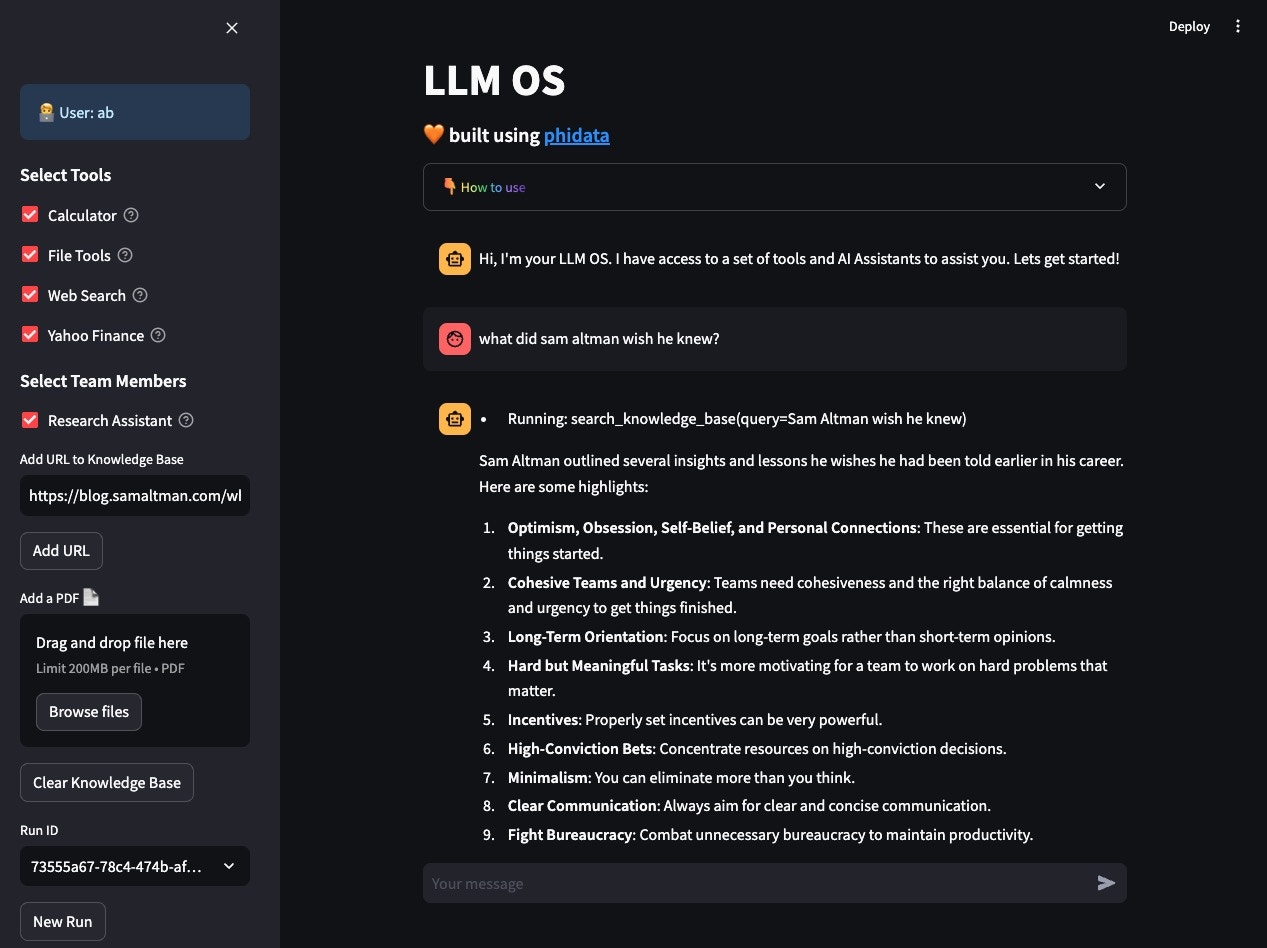
### LLM OS
* Open [localhost:8501](http://localhost:8501) to view your LLM OS.
* Enter a username.
* Add blog post to knowledge: [https://blog.samaltman.com/what-i-wish-someone-had-told-me](https://blog.samaltman.com/what-i-wish-someone-had-told-me) and ask: what did sam altman wish he knew?
* Test Web search: Whats happening in france?
* Test Calculator: What is 10!
* Test Finance: What is the price of AAPL?
* Test Finance: Write a comparison between nvidia and amd, use all finance tools available and summarize the key points
* Test Research: Write a report on Hashicorp IBM acquisition
 ## Optional: Serve your LLM OS as an API
Streamlit is great for building micro front-ends but any production application will be built using a front-end framework like [next.js](https://nextjs.org) backed by a RestApi built using [FastApi](https://fastapi.tiangolo.com/).
Your LLM OS comes with ready-to-use FastApi endpoints.
Update the `workspace/settings.py` file and set `dev_api_enabled=True`
```python workspace/settings.py theme={null}
...
ws_settings = WorkspaceSettings(
...
# Uncomment the following line
dev_api_enabled=True,
...
```
```bash terminal theme={null}
phi ws up --group api
```
```bash shorthand theme={null}
phi ws up dev:docker:api
```
**Press Enter** to confirm
* Open [localhost:8000/docs](http://localhost:8000/docs) to view the API Endpoints.
* Test the `v1/assitants/chat` endpoint with
```json theme={null}
{
"message": "Whats 10!",
"agent": "LLM_OS"
}
```
### Build an AI Product using the LLM OS
Your `llm-os` comes with pre-configured API endpoints that can be used to build your AI product. The general workflow is:
* Call the `/assitants/create` endpoint to create a new run for a user.
```json theme={null}
{
"user_id": "my-app-user-1",
"agent": "LLM_OS"
}
```
* The response contains a `run_id` that can be used to build a chat interface by calling the `/assitants/chat` endpoint.
```json theme={null}
{
"message": "whats 10!",
"stream": true,
"run_id": "372224c0-cd5e-4e87-a29d-65d33d9353a5",
"user_id": "my-app-user-1",
"agent": "LLM_OS"
}
```
These routes are defined the `api/routes` folder and can be customized to your use case.
Message us on [discord](https://discord.gg/4MtYHHrgA8) if you need help.
## Delete local resources
Play around and stop the workspace using:
```bash terminal theme={null}
phi ws down
```
```bash full options theme={null}
phi ws down --env dev --infra docker
```
```bash shorthand theme={null}
phi ws down dev:docker
```
or stop individual Apps using:
```bash app theme={null}
phi ws down --group app
```
```bash api theme={null}
phi ws down --group api
```
```bash database theme={null}
phi ws down --group db
```
## Next
Congratulations on running your LLM OS locally. Next Steps:
* [Run your LLM OS on AWS](/templates/llm-os/run-aws)
* Read how to [update workspace settings](/templates/how-to/workspace-settings)
* Read how to [create a git repository for your workspace](/templates/how-to/git-repo)
* Read how to [manage the development application](/templates/how-to/development-app)
* Read how to [format and validate your code](/templates/how-to/format-and-validate)
* Read how to [add python libraries](/templates/how-to/install)
* Chat with us on [discord](https://discord.gg/4MtYHHrgA8)
## Optional: Serve your LLM OS as an API
Streamlit is great for building micro front-ends but any production application will be built using a front-end framework like [next.js](https://nextjs.org) backed by a RestApi built using [FastApi](https://fastapi.tiangolo.com/).
Your LLM OS comes with ready-to-use FastApi endpoints.
Update the `workspace/settings.py` file and set `dev_api_enabled=True`
```python workspace/settings.py theme={null}
...
ws_settings = WorkspaceSettings(
...
# Uncomment the following line
dev_api_enabled=True,
...
```
```bash terminal theme={null}
phi ws up --group api
```
```bash shorthand theme={null}
phi ws up dev:docker:api
```
**Press Enter** to confirm
* Open [localhost:8000/docs](http://localhost:8000/docs) to view the API Endpoints.
* Test the `v1/assitants/chat` endpoint with
```json theme={null}
{
"message": "Whats 10!",
"agent": "LLM_OS"
}
```
### Build an AI Product using the LLM OS
Your `llm-os` comes with pre-configured API endpoints that can be used to build your AI product. The general workflow is:
* Call the `/assitants/create` endpoint to create a new run for a user.
```json theme={null}
{
"user_id": "my-app-user-1",
"agent": "LLM_OS"
}
```
* The response contains a `run_id` that can be used to build a chat interface by calling the `/assitants/chat` endpoint.
```json theme={null}
{
"message": "whats 10!",
"stream": true,
"run_id": "372224c0-cd5e-4e87-a29d-65d33d9353a5",
"user_id": "my-app-user-1",
"agent": "LLM_OS"
}
```
These routes are defined the `api/routes` folder and can be customized to your use case.
Message us on [discord](https://discord.gg/4MtYHHrgA8) if you need help.
## Delete local resources
Play around and stop the workspace using:
```bash terminal theme={null}
phi ws down
```
```bash full options theme={null}
phi ws down --env dev --infra docker
```
```bash shorthand theme={null}
phi ws down dev:docker
```
or stop individual Apps using:
```bash app theme={null}
phi ws down --group app
```
```bash api theme={null}
phi ws down --group api
```
```bash database theme={null}
phi ws down --group db
```
## Next
Congratulations on running your LLM OS locally. Next Steps:
* [Run your LLM OS on AWS](/templates/llm-os/run-aws)
* Read how to [update workspace settings](/templates/how-to/workspace-settings)
* Read how to [create a git repository for your workspace](/templates/how-to/git-repo)
* Read how to [manage the development application](/templates/how-to/development-app)
* Read how to [format and validate your code](/templates/how-to/format-and-validate)
* Read how to [add python libraries](/templates/how-to/install)
* Chat with us on [discord](https://discord.gg/4MtYHHrgA8)