> ## Documentation Index
> Fetch the complete documentation index at: https://docs.phidata.com/llms.txt
> Use this file to discover all available pages before exploring further.
# Build a Junior Data Engineer
Junior DE is an AI App for data analysts, engineers and scientists to offload the daily, mundane data tasks. It can:
* Write python scripts for processing data, creating charts
* Analyze CSV, Parquet or JSON data using DuckDb.
* Write complex queries including joins and filtering.
* Run data transformations and export the results.
* Explain analysis step-by-step.
The best part is that it inspects, validates and runs code like a regular engineer. It also plays well with long-term, multi-turn conversations. **Follow along to build your own Junior DE.**
## Create your codebase
Create your codebase using the `junior-de` template
```bash Mac theme={null}
phi ws create -t junior-de -n junior-de
```
```bash Windows theme={null}
phi ws create -t junior-de -n junior-de
```
This will create a folder `junior-de` with the following structure:
```bash theme={null}
junior-de # root directory for your junior-de
├── ai # directory for AI components
├── duckgpt # directory for the DuckDb DE
├── pygpt # directory for the Python DE
├── agents # AI agents
├── knowledge_base.py # agent knowledge base
└── storage.py # agent storage
├── app # directory for Streamlit apps
├── db # directory for database components
├── notebooks # directory for Jupyter notebooks
├── Dockerfile # Dockerfile for the application
├── pyproject.toml # python project definition
├── requirements.txt # python dependencies managed by pyproject.toml
├── scripts # directory for helper scripts
├── utils # directory for utilities
└── workspace # phidata workspace directory
├── dev_resources.py # dev resources running locally
├── prd_resources.py # production resources running on AWS
├── jupyter # jupyter notebook resources
├── secrets # directory for storing secrets
└── settings.py # phidata workspace settings
```
## Run Junior DE locally
Start your Junior DE using:
```bash terminal theme={null}
phi ws up
```
```bash shorthand theme={null}
phi ws up dev:docker
```
**Press Enter** to confirm and give a few minutes for the image to download (only the first time). Verify container status and view logs on the docker dashboard.
## DuckGPT: Automate Data Analysis using DuckDb
* Open [localhost:8501](http://localhost:8501) to access your Junior DE.
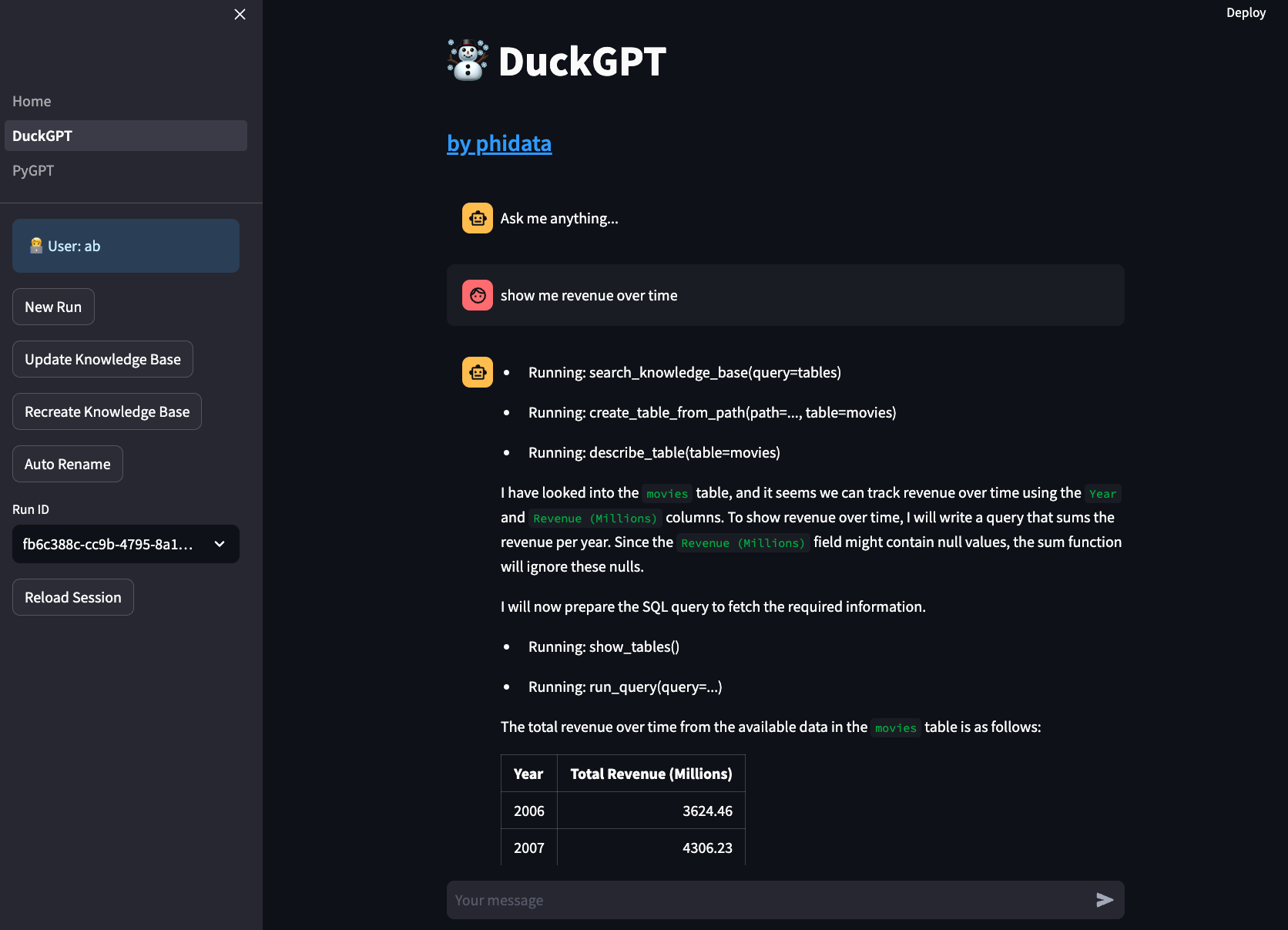
* Your first Junior DE is **DuckGPT** that can write and run SQL queries using DuckDb.
* Click on **DuckGPT** and enter a username.
* Message "Show me revenue over time"
* See your Junior DE work through the problem.
* Message "Save it" to save the query to the `ai/duckgpt/scratch` folder.
 ## Add your data
`DuckGPT` tables are defined in the `ai/duckgpt/knowledge/tables.json` file.
* You can add `csv`, `json` or `parquet` files stored locally or on s3.
* You can also add `txt` files to provide more information to the Agent.
* Click the `Update Knowledge Base` to load the knowledge base.
## How DuckGPT works
DuckGPT uses the `DuckDbAgent` defined in the `ai/duckgpt/duckgpt.py` file. You can customize your agent and adapt the Junior DE to your workflow.
## PyGPT: Automate Data Analysis using Python
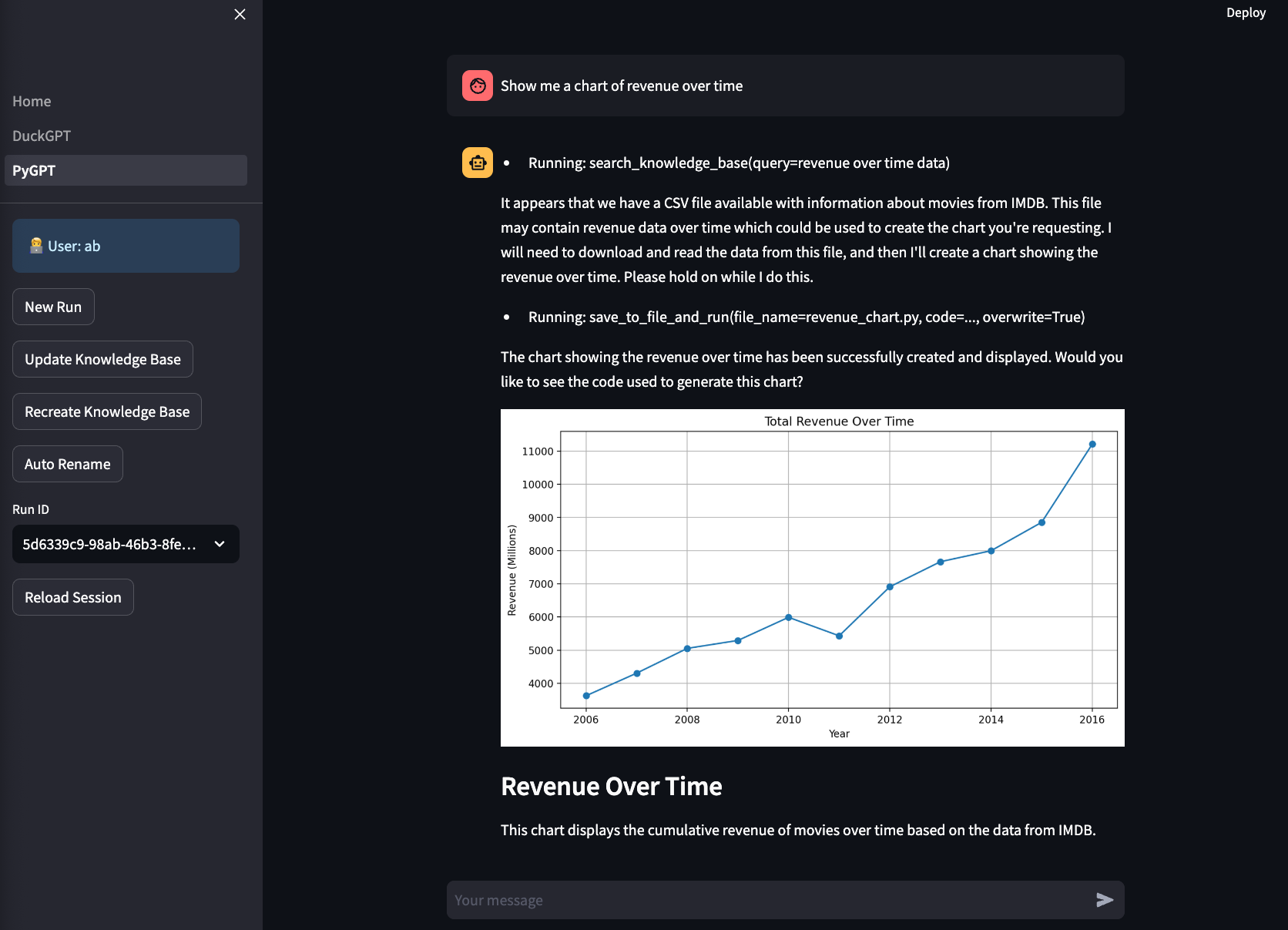
* Your next Junior DE is **PyGPT** that can write python scripts for processing data, create charts and more. Click on **PyGPT**.
* Message "Show me a chart of revenue per year"
* Each script that PyGPT creates and runs is saved to the `ai/pygpt/scratch` folder for reference
* See your Junior DE work through the problem.
## Add your data
`DuckGPT` tables are defined in the `ai/duckgpt/knowledge/tables.json` file.
* You can add `csv`, `json` or `parquet` files stored locally or on s3.
* You can also add `txt` files to provide more information to the Agent.
* Click the `Update Knowledge Base` to load the knowledge base.
## How DuckGPT works
DuckGPT uses the `DuckDbAgent` defined in the `ai/duckgpt/duckgpt.py` file. You can customize your agent and adapt the Junior DE to your workflow.
## PyGPT: Automate Data Analysis using Python
* Your next Junior DE is **PyGPT** that can write python scripts for processing data, create charts and more. Click on **PyGPT**.
* Message "Show me a chart of revenue per year"
* Each script that PyGPT creates and runs is saved to the `ai/pygpt/scratch` folder for reference
* See your Junior DE work through the problem.
 ## Add your data
`PyGPT` files are defined in the `ai/pygpt/knowledge/files.json` file.
* You can add `csv`, `json` or `parquet` files stored locally or on s3.
* You can also add `txt` files to provide more information to the Agent.
* Click the `Update Knowledge Base` to load the knowledge base.
## How PyGPT works
PyGPT uses the `PythonAgent` defined in the `ai/pygpt/pygpt_streamlit.py` file. You can customize your agent and adapt the Junior DE to your workflow.
## Optional: Run Jupyterlab
A jupyter notebook is a must have for AI development and your `junior-de` comes with a notebook pre-installed with the required dependencies. To start your notebook:
Update the `workspace/settings.py` file and set `dev_jupyter_enabled=True`
```python workspace/settings.py theme={null}
...
ws_settings = WorkspaceSettings(
...
# Uncomment the following line
dev_jupyter_enabled=True,
...
```
```bash terminal theme={null}
phi ws up --group jupyter
```
```bash shorthand theme={null}
phi ws up dev:docker:jupyter
```
**Press Enter** to confirm and give a few minutes for the image to download (only the first time). Verify container status and view logs on the docker dashboard.
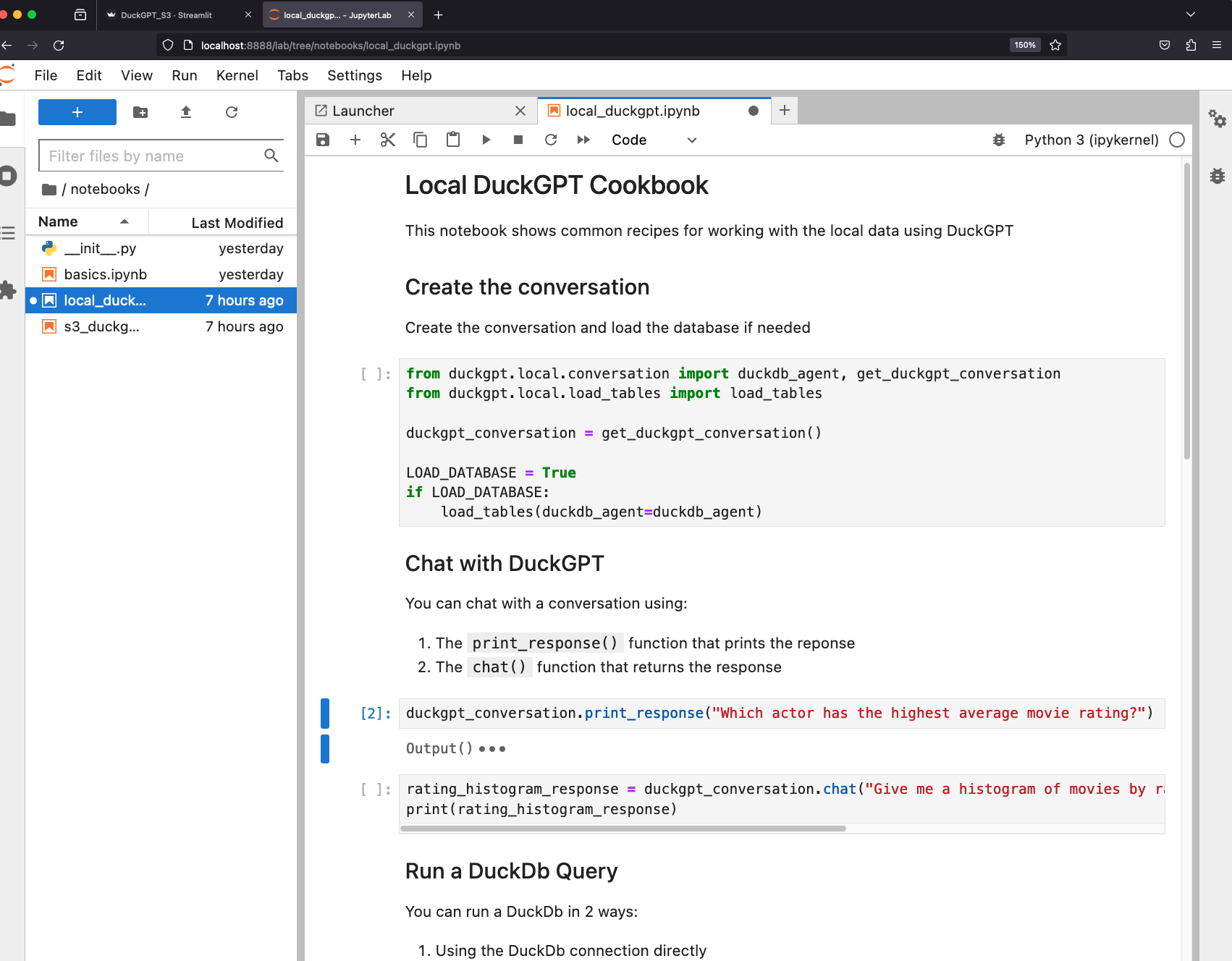
* Open [localhost:8888](http://localhost:8888) to view the Jupyterlab UI. Password: **admin**
* Open `notebooks/duckgpt` to play with DuckGPT.
## Add your data
`PyGPT` files are defined in the `ai/pygpt/knowledge/files.json` file.
* You can add `csv`, `json` or `parquet` files stored locally or on s3.
* You can also add `txt` files to provide more information to the Agent.
* Click the `Update Knowledge Base` to load the knowledge base.
## How PyGPT works
PyGPT uses the `PythonAgent` defined in the `ai/pygpt/pygpt_streamlit.py` file. You can customize your agent and adapt the Junior DE to your workflow.
## Optional: Run Jupyterlab
A jupyter notebook is a must have for AI development and your `junior-de` comes with a notebook pre-installed with the required dependencies. To start your notebook:
Update the `workspace/settings.py` file and set `dev_jupyter_enabled=True`
```python workspace/settings.py theme={null}
...
ws_settings = WorkspaceSettings(
...
# Uncomment the following line
dev_jupyter_enabled=True,
...
```
```bash terminal theme={null}
phi ws up --group jupyter
```
```bash shorthand theme={null}
phi ws up dev:docker:jupyter
```
**Press Enter** to confirm and give a few minutes for the image to download (only the first time). Verify container status and view logs on the docker dashboard.
* Open [localhost:8888](http://localhost:8888) to view the Jupyterlab UI. Password: **admin**
* Open `notebooks/duckgpt` to play with DuckGPT.
 ## Upcoming Upgrades
Junior DE is a v0 release, meaning there will be plenty of bugs and plenty of upgrades. Here's what we have in the works:
* Add Snowflake Agent.
* Ask questions via slack
* Add Airflow Agent.
* Add ability to write and test data pipelines.
Message us on [discord](https://discord.gg/4MtYHHrgA8) if you want to beta-test.
## Next
Congratulations on running your Junior DE locally. Next Steps:
* [Run your Junior DE on AWS](/templates/junior-de/run-aws)
* Read how to [update workspace settings](/templates/how-to/workspace-settings)
* Read how to [create a git repository for your workspace](/templates/how-to/git-repo)
* Read how to [manage the development application](/templates/how-to/development-app)
* Read how to [format and validate your code](/templates/how-to/format-and-validate)
* Read how to [add python libraries](/templates/how-to/install)
* Chat with us on [discord](https://discord.gg/4MtYHHrgA8)
## Upcoming Upgrades
Junior DE is a v0 release, meaning there will be plenty of bugs and plenty of upgrades. Here's what we have in the works:
* Add Snowflake Agent.
* Ask questions via slack
* Add Airflow Agent.
* Add ability to write and test data pipelines.
Message us on [discord](https://discord.gg/4MtYHHrgA8) if you want to beta-test.
## Next
Congratulations on running your Junior DE locally. Next Steps:
* [Run your Junior DE on AWS](/templates/junior-de/run-aws)
* Read how to [update workspace settings](/templates/how-to/workspace-settings)
* Read how to [create a git repository for your workspace](/templates/how-to/git-repo)
* Read how to [manage the development application](/templates/how-to/development-app)
* Read how to [format and validate your code](/templates/how-to/format-and-validate)
* Read how to [add python libraries](/templates/how-to/install)
* Chat with us on [discord](https://discord.gg/4MtYHHrgA8)