> ## Documentation Index
> Fetch the complete documentation index at: https://docs.phidata.com/llms.txt
> Use this file to discover all available pages before exploring further.
# Use Custom Domain and HTTPS
## Use a custom domain
1. Register your domain with [Route 53](https://us-east-1.console.aws.amazon.com/route53/).
2. Point the domain to the loadbalancer DNS.
### Custom domain for your Streamlit App
Create a record in the Route53 console to point `app.[YOUR_DOMAIN]` to the Streamlit App.
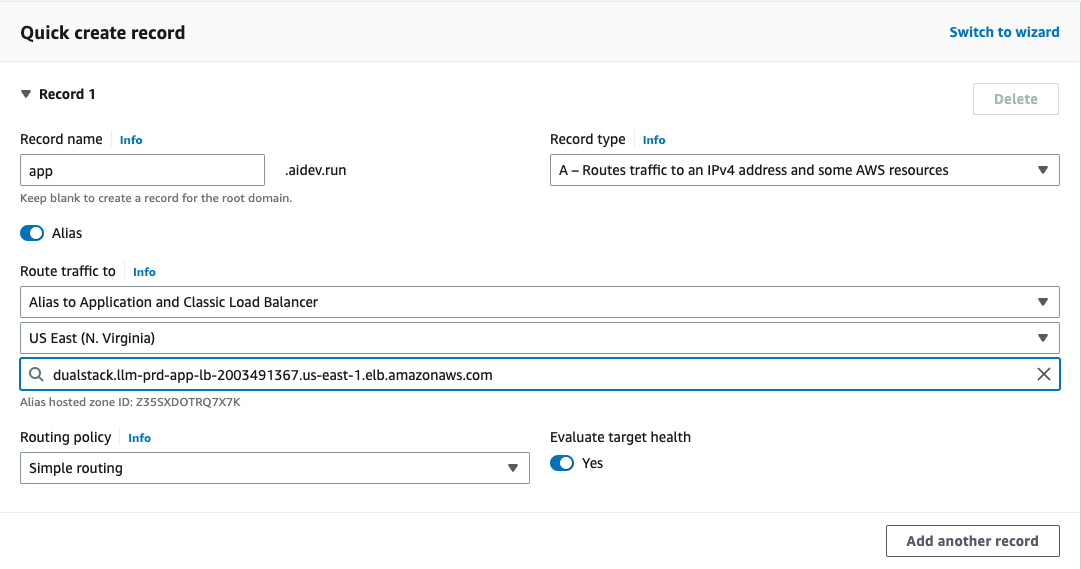 You can visit the app at [http://app.aidev.run](http://app.aidev.run)
Note the `http` in the domain name.
### Custom domain for your FastApi App
Create a record in the Route53 console to point `api.[YOUR_DOMAIN]` to the FastApi App.
You can visit the app at [http://app.aidev.run](http://app.aidev.run)
Note the `http` in the domain name.
### Custom domain for your FastApi App
Create a record in the Route53 console to point `api.[YOUR_DOMAIN]` to the FastApi App.
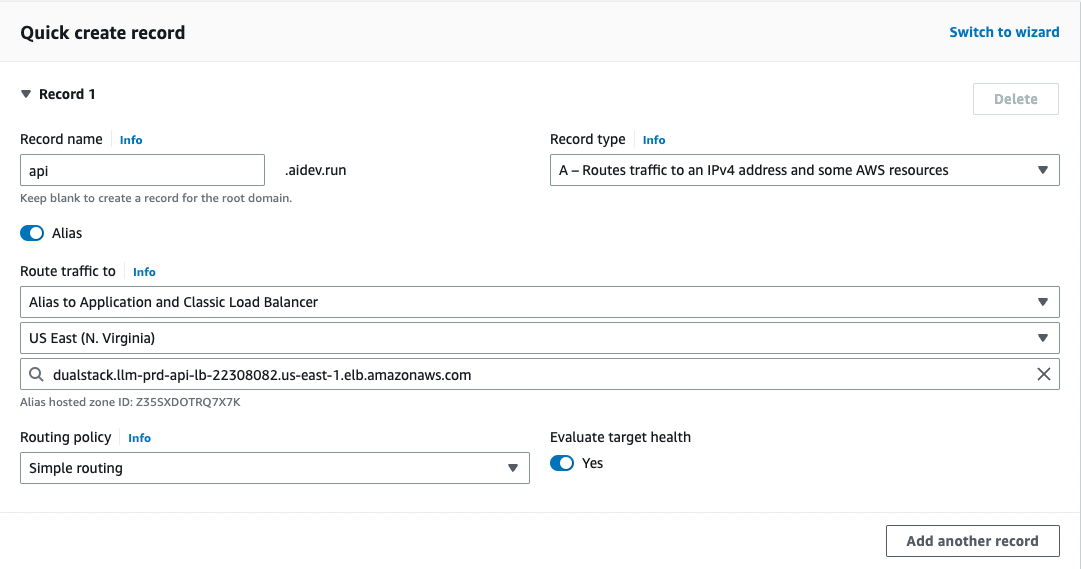 You can access the api at [http://api.aidev.run](http://api.aidev.run)
Note the `http` in the domain name.
## Add HTTPS
To add HTTPS:
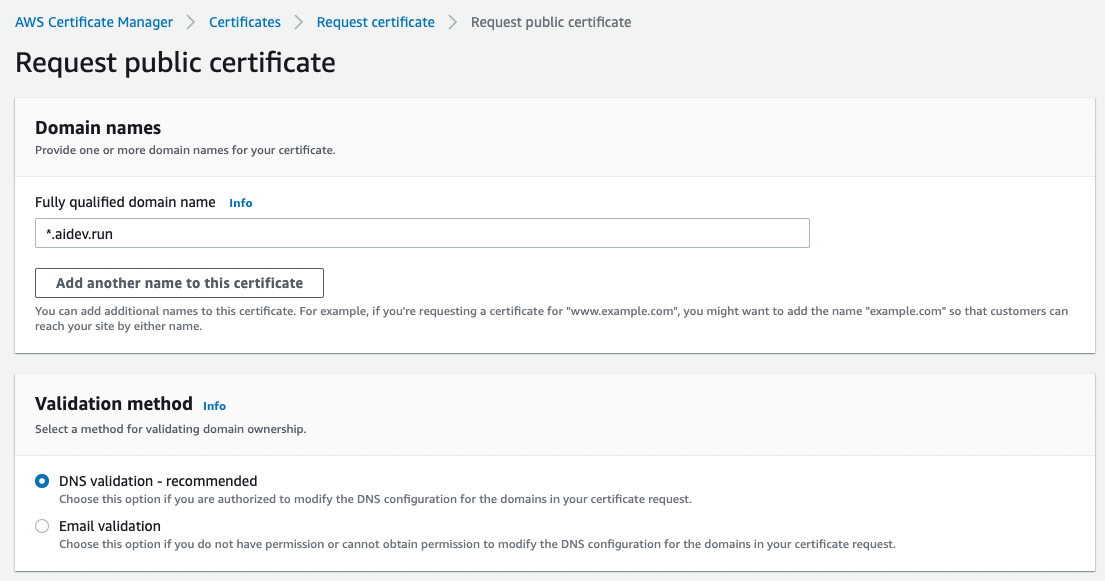
1. Create a certificate using [AWS ACM](https://us-east-1.console.aws.amazon.com/acm). Request a certificat for `*.[YOUR_DOMAIN]`
You can access the api at [http://api.aidev.run](http://api.aidev.run)
Note the `http` in the domain name.
## Add HTTPS
To add HTTPS:
1. Create a certificate using [AWS ACM](https://us-east-1.console.aws.amazon.com/acm). Request a certificat for `*.[YOUR_DOMAIN]`
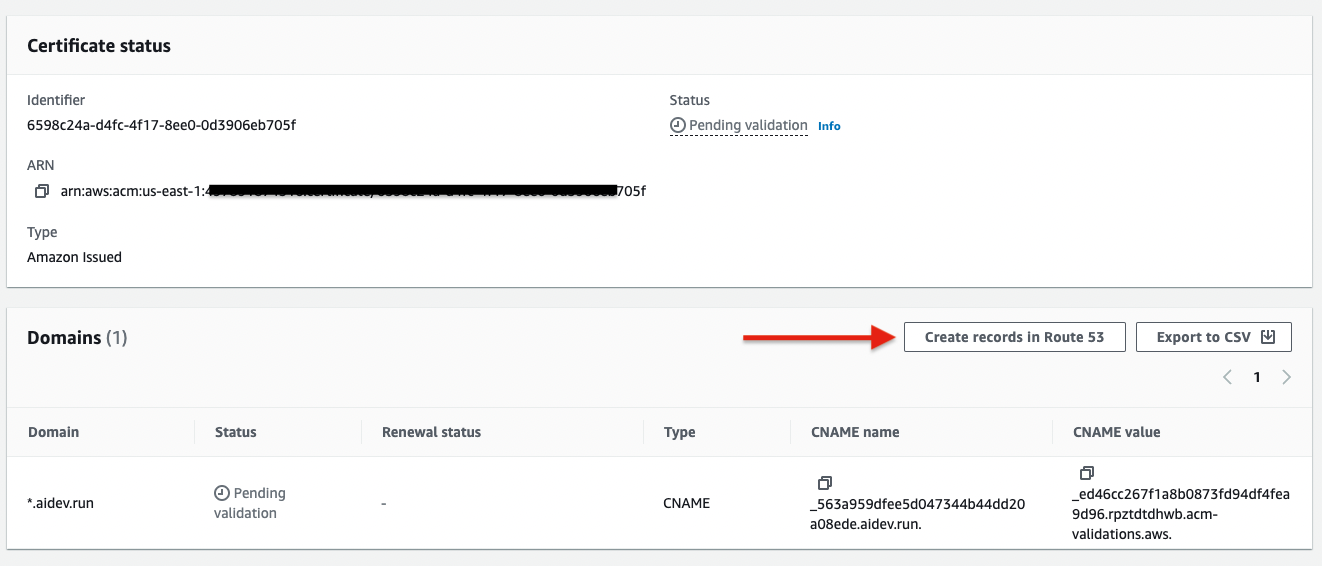
 2. Creating records in Route 53.
 3. Add the certificate ARN to Apps
Make sure the certificate is `Issued` before adding it to your Apps
Update the `llm-app/workspace/prd_resources.py` file and add the `load_balancer_certificate_arn` to the `FastApi` and `Streamlit` Apps.
```python workspace/prd_resources.py theme={null}
# -*- Streamlit running on ECS
prd_streamlit = Streamlit(
...
# To enable HTTPS, create an ACM certificate and add the ARN below:
load_balancer_enable_https=True,
load_balancer_certificate_arn="arn:aws:acm:us-east-1:497891874516:certificate/6598c24a-d4fc-4f17-8ee0-0d3906eb705f",
...
)
# -*- FastApi running on ECS
prd_fastapi = FastApi(
...
# To enable HTTPS, create an ACM certificate and add the ARN below:
load_balancer_enable_https=True,
load_balancer_certificate_arn="arn:aws:acm:us-east-1:497891874516:certificate/6598c24a-d4fc-4f17-8ee0-0d3906eb705f",
...
)
```
4. Create new Loadbalancer Listeners
Create new listeners for the loadbalancer to pickup the HTTPs configuration.
```bash terminal theme={null}
phi ws up --env prd --infra aws --name listener
```
```bash shorthand theme={null}
phi ws up -e prd -i aws -n listener
```
The certificate should be `Issued` before applying it.
After this, `https` should be working on your custom domain.
5. Update existing listeners to redirect HTTP to HTTPS
```bash terminal theme={null}
phi ws patch --env prd --infra aws --name listener
```
```bash shorthand theme={null}
phi ws patch -e prd -i aws -n listener
```
After this, all HTTP requests should redirect to HTTPS automatically.
3. Add the certificate ARN to Apps
Make sure the certificate is `Issued` before adding it to your Apps
Update the `llm-app/workspace/prd_resources.py` file and add the `load_balancer_certificate_arn` to the `FastApi` and `Streamlit` Apps.
```python workspace/prd_resources.py theme={null}
# -*- Streamlit running on ECS
prd_streamlit = Streamlit(
...
# To enable HTTPS, create an ACM certificate and add the ARN below:
load_balancer_enable_https=True,
load_balancer_certificate_arn="arn:aws:acm:us-east-1:497891874516:certificate/6598c24a-d4fc-4f17-8ee0-0d3906eb705f",
...
)
# -*- FastApi running on ECS
prd_fastapi = FastApi(
...
# To enable HTTPS, create an ACM certificate and add the ARN below:
load_balancer_enable_https=True,
load_balancer_certificate_arn="arn:aws:acm:us-east-1:497891874516:certificate/6598c24a-d4fc-4f17-8ee0-0d3906eb705f",
...
)
```
4. Create new Loadbalancer Listeners
Create new listeners for the loadbalancer to pickup the HTTPs configuration.
```bash terminal theme={null}
phi ws up --env prd --infra aws --name listener
```
```bash shorthand theme={null}
phi ws up -e prd -i aws -n listener
```
The certificate should be `Issued` before applying it.
After this, `https` should be working on your custom domain.
5. Update existing listeners to redirect HTTP to HTTPS
```bash terminal theme={null}
phi ws patch --env prd --infra aws --name listener
```
```bash shorthand theme={null}
phi ws patch -e prd -i aws -n listener
```
After this, all HTTP requests should redirect to HTTPS automatically.